Copy and Paste in tmux
How to make copy and paste in tmux work the same as in other apps, using the system clipboard and primary selection.
By default if you’re running tmux in GNOME Terminal or st you can copy and paste with the primary selection and system clipboard like you would in any normal app:
- Click and drag with the Left Mouse Button to select some text and copy it into the primary selection
- Double-click the Left Mouse Button on a word to select the word and copy it into the primary selection
- Triple-click the Left Mouse Button on a line to select the whole line and copy it into the primary selection
- Click the Middle Mouse Button to paste from the primary selection
- Ctrl + Shift + c to copy the selection into the clipboard
- Ctrl + Shift + v to paste from the clipboard
None of this has anything to do with tmux. It’s because tmux doesn’t handle mouse events by default, so all the clicking, dragging, copying and pasting is being handled by the terminal emulator that tmux is running in. Ctrl + Shift + c and Ctrl + Shift + v are the keyboard shortcuts that both GNOME Terminal and st use for copying to and pasting from the system clipboard.
There are a few problems with this:
-
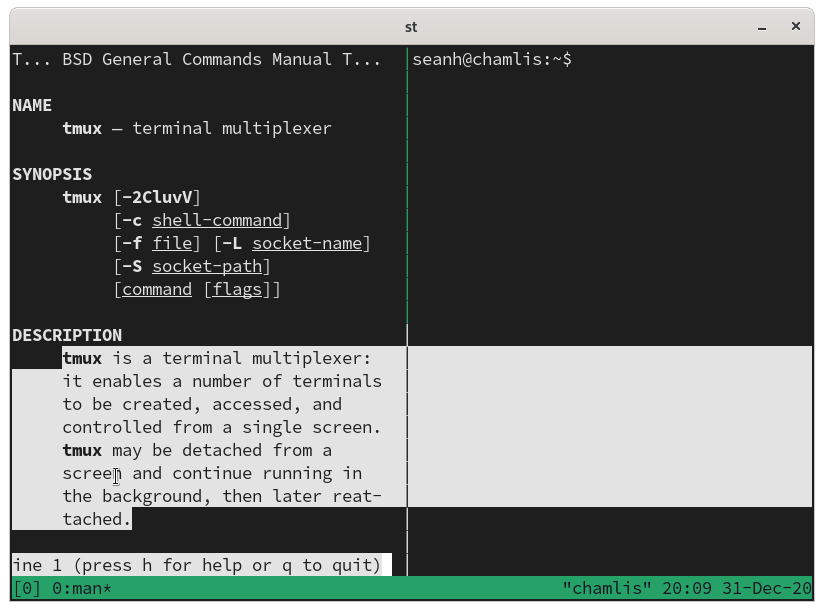
The terminal emulator isn’t aware of tmux’s status bar, panes, etc. So when you have a window split into two panes, trying to copy text from one of the panes will also copy the pane border and the contents of the other pane. There are other problems too, like being unable to copy a block of text that takes up more than one screenful in the scrollback history.
-
Copying text using keyboard commands and tmux’s copy mode doesn’t copy the text into the system clipboard. Selecting text with tmux’s keyboard commands and then using your terminal emulator’s copy command (Ctrl + Shift + c) doesn’t work either.
-
You’re missing out on the features of tmux’s mouse mode such as being able to scroll with the mousewheel, click on panes and windows to select them, and click and drag on pane borders to resize panes.
We can fix this by enabling tmux’s mouse mode:
$ tmux set -g mouse on
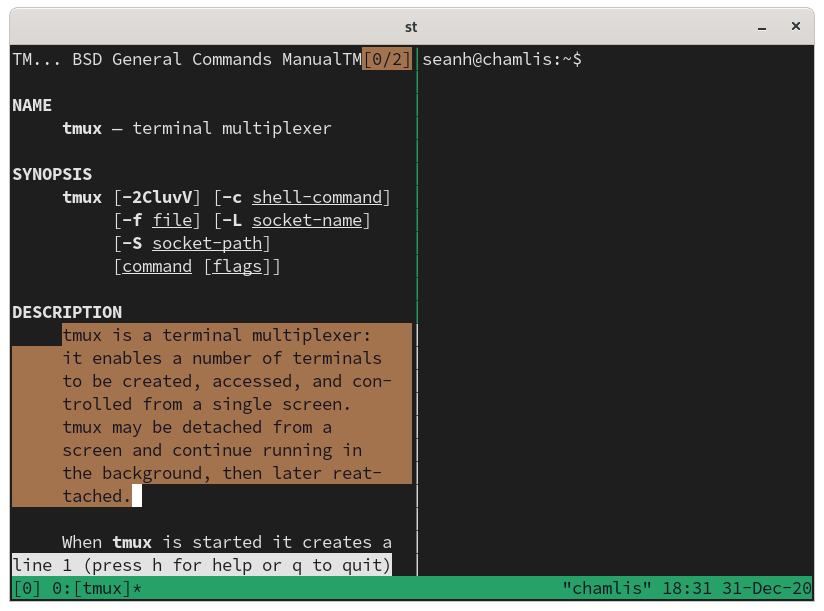
Now selecting text by clicking-and-dragging with the mouse is aware of tmux panes, scrollback, and everything else:
And we’ve gained the rest of tmux’s mouse mode features, too:
- You can use the mouse wheel to scroll through the history
- You can click on a pane to select that pane
- You can click on a window in the status bar to select that window
- You can click and drag on pane borders to resize panes
Unfortunately now that mouse mode’s enabled the system clipboard and primary selection no longer work at all:
- Selecting text by clicking and dragging doesn’t copy it into the primary selection, and your selection disappears as soon as you release the mouse button
- Double-clicking and triple-clicking to select words and lines no longer works (it does select the word or line if you manually enter tmux’s copy mode first, but still doesn’t copy it into the system clipboard)
- Terminal emulator keyboard shortcuts like Ctrl + Shift + c don’t copy the selection into the system clipboard. The terminal emulator is no longer aware of the selection, because tmux is now handling it.
You can still paste from the system clipboard with Ctrl + Shift + v though, that never breaks.
Fortunately we can fix all of this with a little bit of tmux config work…
tmux-yank
The first thing to do is install Tmux Plugin Manager and then use it to install the tmux-yank plugin.
You will need:
To install Tmux Plugin Manager and tmux-yank:
-
Clone Tmux Plugin Manager:
$ git clone https://github.com/tmux-plugins/tpm ~/.tmux/plugins/tpm -
Add this to your
~/.tmux.conffile:set -g mouse on set -g @plugin 'tmux-plugins/tpm' set -g @plugin 'tmux-plugins/tmux-yank' bind -T copy-mode C-c send -X copy-pipe-no-clear "xsel -i --clipboard" bind -T copy-mode-vi C-c send -X copy-pipe-no-clear "xsel -i --clipboard" # Initialize TMUX plugin manager (keep this line at the very bottom of tmux.conf) run '~/.tmux/plugins/tpm/tpm' -
Reload your
~/.tmux.conffile:$ tmux source ~/.tmux.conf -
Use Tmux Plugin Manager to install tmux-yank:
$ ~/.tmux/plugins/tpm/bin/install_plugins
You should now have a couple of things working:
-
Selecting text with the mouse will copy it into the primary selection so that you can paste it into another app with the Middle Mouse Button. (Middle Mouse Button to paste won’t be working in tmux itself yet, we’ll get to that below.)
-
If you use tmux’s copy mode keyboard commands to select some text and then click Ctrl + c or y it’ll copy it into the system clipboard.
The
bind‘s in the~/.tmux.confsnippet above make Ctrl + c do the same thing as y, but they only work in X Windows. If you’re using a different window system you’ll have to replace thexselcommands with something else.
Don’t clear the selection on raise
When you click and drag with the Left Mouse Button to select some text in tmux’s mouse mode, as soon as you release the button it infuriatingly clears your selection:
It does the same when you select text with the keyboard and hit y to copy it.
To fix it add this line to your ~/.tmux.conf:
set -g @yank_action 'copy-pipe-no-clear'
Then reload your ~/.tmux.conf file:
$ tmux source ~/.tmux.conf
Now when you release the mouse button your selection will be copied into the primary selection but not cleared, like in any other app. After selecting some text you can:
- Use the arrow keys and other tmux copy mode cursor movement commands to refine a selection that you started with the mouse
- Press Ctrl + c or y to copy a mouse-created selection into the system clipboard
Hit q to clear the selection and exit copy mode. To just clear the selection and remain in copy mode hit Ctrl + g, or Esc if you have tmux’s vi-style copy mode bindings enabled.
Double-click and triple-click
Double-clicking to select a word and triple-clicking to select a line still don’t work unless you’re already in tmux’s copy mode. And even in copy mode they don’t copy into the primary selection.
Add these lines to your ~/.tmux.conf to fix it:
bind -T copy-mode    DoubleClick1Pane select-pane \; send -X select-word \; send -X copy-pipe-no-clear "xsel -i"
bind -T copy-mode-vi DoubleClick1Pane select-pane \; send -X select-word \; send -X copy-pipe-no-clear "xsel -i"
bind -n DoubleClick1Pane select-pane \; copy-mode -M \; send -X select-word \; send -X copy-pipe-no-clear "xsel -i"
bind -T copy-mode    TripleClick1Pane select-pane \; send -X select-line \; send -X copy-pipe-no-clear "xsel -i"
bind -T copy-mode-vi TripleClick1Pane select-pane \; send -X select-line \; send -X copy-pipe-no-clear "xsel -i"
bind -n TripleClick1Pane select-pane \; copy-mode -M \; send -X select-line \; send -X copy-pipe-no-clear "xsel -i"
Then reload your ~/.tmux.conf file:
$ tmux source ~/.tmux.conf
Now double-clicking or triple-clicking with the Left Mouse Button should enter copy mode if you aren’t already in it, select the word or line, and copy it into the primary selection.
As with clicking-and-dragging you can use the arrow keys and other tmux copy cursor movement commands to refine the selection and press Ctrl + c or y to copy it into the system clipboard.
Middle-click to paste
Middle Mouse Button still doesn’t paste from the primary selection.
To fix it add this to your ~/.tmux.conf:
bind -n MouseDown2Pane run "tmux set-buffer -b primary_selection \"$(xsel -o)\"; tmux paste-buffer -b primary_selection; tmux delete-buffer -b primary_selection"
Reload your ~/.tmux.conf file:
$ tmux source ~/.tmux.conf
Middle-click to paste should now work.
Pasting from the system clipboard
It would be possible to add a tmux key binding to paste from the system
clipboard using an external program like xsel (depending on your window
system) but it’s unnecessary: your terminal emulator’s paste command will still
work. In GNOME Terminal or st it’s just
Ctrl + Shift + v
Other terminal emulator mouse commands
GNOME Terminal shows a context menu if you click the Right Mouse Button on the terminal. If you click on a URL this menu can open the URL in a browser. I don’t think there’s any way to get these sorts of terminal emulator mouse commands to work when you have mouse mode enabled in tmux: tmux either takes over all mouse events or none of them. You just always have to do Shift + Right Mouse Button instead (holding down Shift temporarily disables tmux’s mouse mode).
tmux’s copy mode
tmux has a “copy mode” for finding, selecting and copying text using the keyboard. You don’t really need copy mode if you’ve followed the instructions above to fix mouse-based copy and paste but it’s very powerful so it might be worth learning.
In tmux Ctrl + b [ enters copy
mode, where you can move the cursor around and select text. If you have
tmux’s mouse mode enabled (set -g mouse on) then scrolling with the
scrollwheel also enters copy mode. Ctrl + b
Page Up enters copy mode and scrolls up by one page.
In copy mode:
- Space begins selecting some text
- Enter copies the selected text and exits copy mode, but it copies the text into a tmux paste buffer not the system clipboard (tmux-yank adds the y command to copy into the system clipboard)
Back in default mode:
- Ctrl + b ] pastes from tmux’s most recently created paste buffer (i.e. pastes the most recently copied text)
- Ctrl + b = (or
tmux
  choose-buffer
on the command line) shows you all the paste buffers and lets you choose one to paste from
tmux’s paste buffers
Whenever you select some text with the mouse or copy some text with the
keyboard (with either Enter or tmux-yank’s y) tmux
creates a new paste buffer and saves the text in it. When you then select
or copy some other text tmux creates another new paste buffer. Previously
selected texts are still available in their historical paste buffers and can be
viewed and pasted using
Ctrl + b = (tmux choose-buffer).
There are commands for working with paste buffers so you can script them:
tmux show-bufferortmux showbprints the contents of the most recent buffertmux list-buffersortmux lsbprints a list of the buffers and their contentstmux set-buffer <DATA>ortmux setb <DATA>creates a new buffer and loads<DATA>into ittmux load-buffer <PATH>ortmux loadb <PATH>creates a new buffer and loads the contents of a file into ittmux paste-bufferortmux pastebpastes the most recent buffer into the current pane (you can also pass-t <target-pane>to paste into another pane)tmux save-buffer <PATH>ortmux saveb <PATH>writes the most recent buffer to a file, pass-ato append to the file instead of overwriting ittmux delete-bufferottmux deletebdeletes the most recently added buffer
These all take an optional -b <buffer-name> argument to work with a named
buffer instead of the most recent one.
For example to load some data into my_buffer, paste it, and then delete the buffer:
$ tmux setb -b my_buffer <DATA>
$ tmux setb -b my_buffer -a <MORE_DATA>  # Append more data to the same buffer
$ tmux pasteb -b my_buffer
$ tmux deleteb -b my_buffer
My Middle Mouse Button key binding above uses these commands to copy the text from the window system’s primary selection into a named buffer, paste from that buffer, then delete the buffer so it doesn’t pollute your buffer list.
As well as using them as normal shell commands these can also be used on the tmux command line, for example: Ctrl + b : showb Enter